



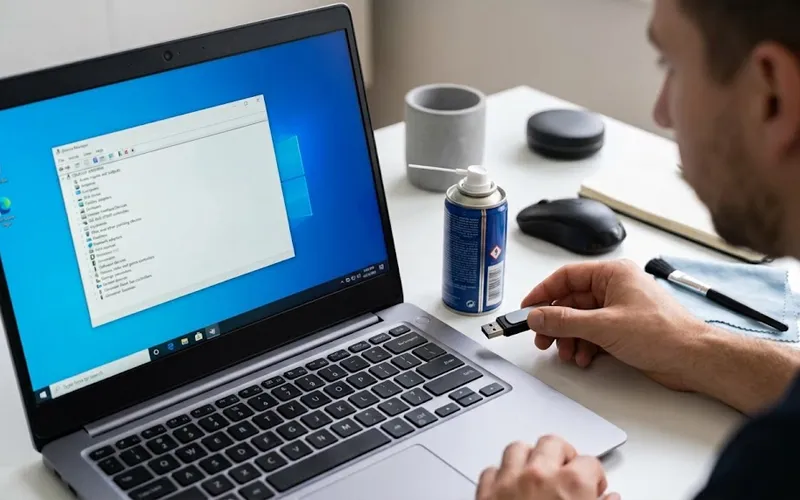
USB ports are among the most useful connections on modern computers, laptops, and other electronic devices. They allow users to connect keyboards, mice, storage drives, smartphones, printers, gaming accessories, and many other peripherals. When a USB port suddenly stops responding, the cause can range from a simple connection problem to a driver issue or physical hardware fault. Understanding how to identify the source can make troubleshooting much easier.
If you are experiencing usb ports not working, begin by determining whether the problem affects one port, several ports, or every USB connection on the device. This distinction is important because a single failed port may indicate physical damage, while several inactive ports can point toward software, power, controller, or motherboard-related problems.
Check the Connected USB Device
Before changing computer settings, examine the device connected to the port. A damaged cable, defective flash drive, faulty keyboard, or incompatible accessory can create symptoms that appear to be caused by the computer. Disconnect the device and test it with another known-working USB connection.
If the accessory works normally elsewhere, the computer port deserves further attention. If the same accessory fails on multiple systems, the peripheral or its cable may be responsible. This simple comparison can prevent unnecessary changes to the computer.
Examine the USB Port
Physical condition can have a direct effect on USB connectivity. Look inside the affected port for visible dust, debris, bent components, or signs that the connector has become loose. A port that moves unusually when a device is inserted may have suffered physical damage.
Never force a USB connector into place. Avoid inserting sharp objects into the port because they can damage internal contacts. If the connector or surrounding hardware appears broken, professional repair is safer than attempting to reshape or repair it manually.
Resolve Driver and Controller Problems
Windows manages USB communication through system drivers and hardware controllers. If these components encounter an error, connected accessories may not appear correctly even when the physical port is functional.
On Windows, open Device Manager and locate Universal Serial Bus controllers. Examine the listed controllers for warning symbols or other unusual indicators. Depending on the detected problem, Windows may provide options to update, disable, or reinstall a device driver.
Use trusted sources when obtaining drivers. Manufacturer-supported software is preferable to unidentified driver-download websites because incorrect drivers can introduce additional compatibility problems.
Easy Ways to Resolve USB Port Problems on Windows 10
When dealing with usb ports not working windows 10, Device Manager is particularly useful for identifying controller-related errors. After locating the USB controllers, open the properties of a device showing an error and review the information provided by Windows.
Power management can also affect USB operation. Windows may temporarily reduce power supplied to certain devices as part of its energy-saving features. If a USB accessory repeatedly disconnects or becomes unavailable, reviewing the relevant power-management settings can help determine whether power saving is involved.
A complete system shutdown can also clear certain temporary hardware states. After turning the computer off, allow it to remain powered down briefly before starting it again and checking the affected connection.
Troubleshoot USB Connections on Windows 11
For usb ports not working windows 11, Windows Update should be checked because operating-system updates can contain hardware compatibility improvements and driver updates. Open Settings and review Windows Update for available software.
If the problem started after a recent driver change, Device Manager can provide information about the affected controller. Depending on the hardware and installed driver, Windows may offer an option to return to a previous driver version.
Windows 11 systems can also differ considerably in their hardware configurations. Some manufacturers use specialized USB controllers or software, so checking the computer manufacturer’s support information can be useful when standard Windows troubleshooting does not identify the cause.
Desktop and Laptop USB Differences
A desktop computer can have USB connections on both its front and rear panels. If only the front connections fail while the rear ones continue working, the internal front-panel wiring may be responsible. These ports connect to headers on the motherboard, and a loose or disconnected cable can prevent them from functioning.
For laptop usb ports not working, power management and hardware design deserve additional attention. Connecting the laptop to its charger can help determine whether power availability is related to the behavior. Some laptops also use different USB standards across their available ports.
USB-C connections require particular attention because their capabilities vary by model. A USB-C port may support data transfer, charging, display output, or a combination of these functions. Therefore, the physical shape of the connector does not necessarily indicate every feature supported by that port.
Investigate Motherboard-Level Problems
When motherboard usb ports not working affects multiple connections simultaneously, the issue may involve the motherboard’s USB controller, firmware, or another internal component. BIOS or UEFI settings can sometimes include options that control USB functionality.
Only change firmware settings when you understand what each option does. Different motherboard manufacturers use different menus and terminology. If USB functionality remains unavailable across multiple ports despite normal software troubleshooting, hardware testing may be necessary.
A technician can inspect the motherboard, internal connections, controller behavior, and power delivery to determine whether the problem originates at board level.
USB Hubs in Monitors and Docking Stations
USB ports built into monitors and docking stations work differently from ordinary computer ports because they depend on an upstream connection to the host computer.
For dell monitor usb ports not working, verify that the monitor has the required USB upstream connection. A video cable can transmit the display signal without necessarily activating the monitor’s integrated USB hub. The correct upstream cable must establish communication between the computer and the monitor’s USB hub.
A docking station can have additional requirements involving power, firmware, drivers, and host connectivity. When dell docking station usb ports not working, check its power supply and host connection before investigating individual USB accessories. Manufacturer-provided firmware and support software may also be required for full functionality.
Troubleshooting USB Ports on Mac Computers
Mac computers can experience USB connectivity issues because of incompatible accessories, damaged cables, software problems, or hardware faults. Disconnecting unnecessary peripherals can help isolate a device that may be interfering with the connection.
For macbook usb ports not working, test compatible accessories individually and consider the capabilities of the particular Mac model. USB-C ports may support multiple functions, but the exact capabilities depend on the hardware generation.
Some high-powered peripherals, particularly certain external storage devices, may require more power than a connection can provide under particular conditions. A compatible powered hub can be appropriate when the accessory’s power requirements exceed the available connection.
USB Ports on Gaming Consoles
Gaming consoles use USB connections for controllers, storage devices, charging, and accessories. If nintendo switch dock usb ports not working becomes an issue, inspect the dock’s power and console connections and verify that the accessory is compatible with the system.
Different console ports can have different technical specifications. For ps5 usb ports not working, consult the console’s specifications to determine whether the affected port supports the function required by the connected accessory. The same principle applies when ps4 usb ports not working, particularly when using external storage or other specialized peripherals.
If several console ports fail at the same time, the problem may extend beyond an individual connector and require hardware assessment.
Preventing Future USB Issues
Good handling practices can reduce unnecessary USB failures. Insert connectors straight into their ports rather than applying sideways pressure, and remove accessories by holding the connector instead of pulling the cable.
Keep computers and peripherals away from excessive moisture and heavy dust. Use cables and accessories that match the specifications of the device, particularly when working with external drives, hubs, and high-power peripherals.
Keeping the operating system, device firmware, and manufacturer-supported drivers current can also reduce compatibility problems. Regular maintenance is especially useful for computers that rely on several USB-connected devices every day.
Frequently Asked Questions
1. What should I check first if my usb ports not working?
Start by testing the connected USB device on another working port or computer. This helps determine whether the issue is caused by the accessory, cable, or computer connection.
2. Why are my usb ports not working on only one side of my computer?
If only certain ports are affected, inspect them for dust, physical damage, or loose internal connections. On desktop computers, front ports may also depend on cables connected to the motherboard.
3. Can outdated drivers cause usb ports not working?
Yes. USB controllers rely on system drivers to communicate with connected devices. Checking Device Manager and installing manufacturer-supported driver updates can help identify controller-related problems.
4. How can I troubleshoot usb ports not working on Windows?
Check Device Manager for USB controller errors, review Windows Update, and restart the computer after making changes. Testing different USB devices can also help isolate the source.
5. Can power management cause USB connectivity problems?
Yes. Power-saving settings can sometimes reduce power available to connected peripherals. If usb ports not working occurs alongside repeated disconnections, reviewing power-management settings may help identify the cause.
6. Should I check the USB device when a port stops responding?
Absolutely. A faulty cable or peripheral can produce symptoms that look like a computer problem. If usb ports not working occurs with only one accessory, test that accessory on another known-working connection.
7. What should I do if several USB ports stop working at once?
When multiple connections fail simultaneously, the cause may involve drivers, power, firmware, or the USB controller. If usb ports not working continues after basic troubleshooting, professional hardware inspection may be appropriate.
8. When should a USB port be professionally repaired?
Professional assistance is recommended when a connector is visibly damaged, unusually loose, or multiple ports remain unavailable after software troubleshooting. This is particularly important when usb ports not working appears to be related to motherboard-level hardware.
Final Information
USB connectivity problems can originate from the accessory, cable, port, software, power management, controller, or internal hardware. The most effective approach is to identify which part of that chain is responsible rather than changing several settings at once.
Testing the peripheral independently, examining the physical connector, checking operating-system drivers, reviewing device-specific settings, and considering the hardware design of the computer can narrow down the cause. When a port shows visible damage or several connections fail despite normal troubleshooting, professional inspection can provide a safer and more accurate diagnosis.
Want to explore more useful technology insights? Discover practical guides, tech updates, digital tips, and the latest trends shaping the world of technology on TrendsMore.com.